
How to see your team's dashboard
Follow these 5 quick steps to open your Real-Time Dashboard "TANK".
1
Open My Apps
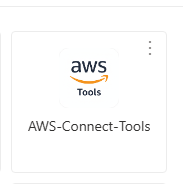
Go to myapplications.microsoft.com and click on the AWS-Connect-Tools app tile.
ℹ️ PEARL project note: During the PEARL project, sign in to
My Apps with your @gn.group account.
2
Sign in
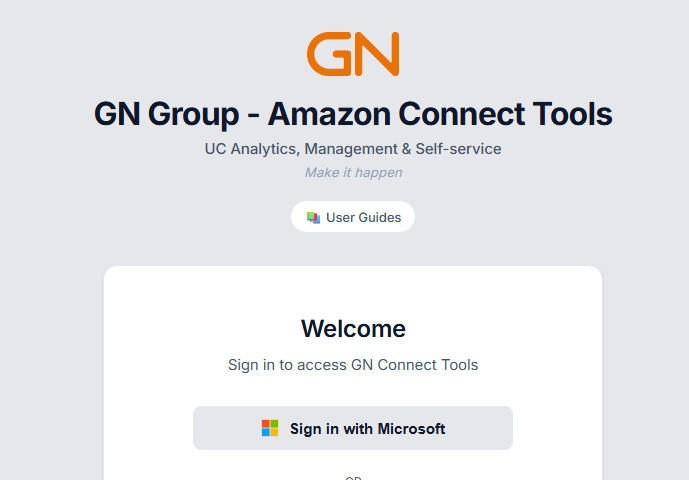
Click Sign in with Microsoft and use your normal work account — the same one you use for email.
3
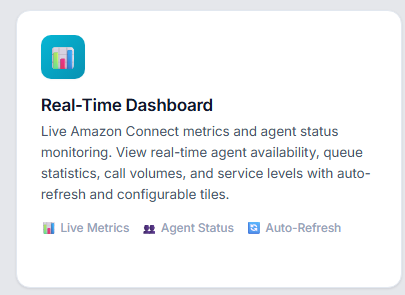
Open the Real-Time Dashboard "TANK"
On the portal homepage, click the Real-Time Dashboard "TANK" tile.
4
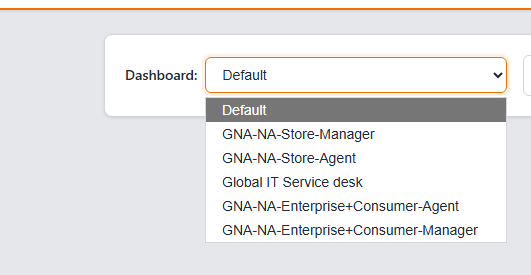
Select your dashboard
Use the Dashboard dropdown at the top and choose the one for your team.
5
That's it!
Your dashboard loads automatically and keeps itself up to date.
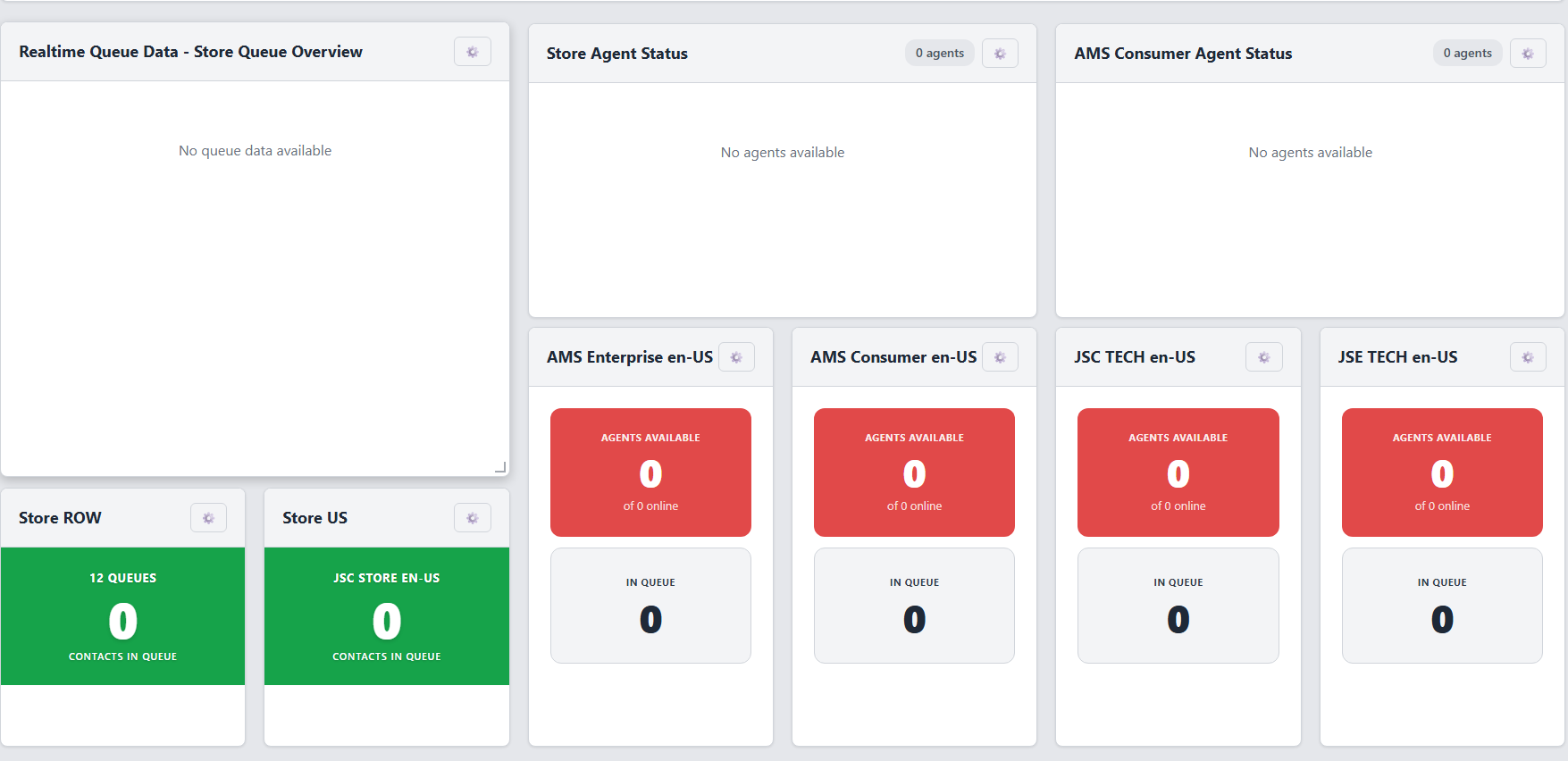
ℹ️ Note: The dashboard shown above is just an example — your
dashboard will show your own team's queues and agents.